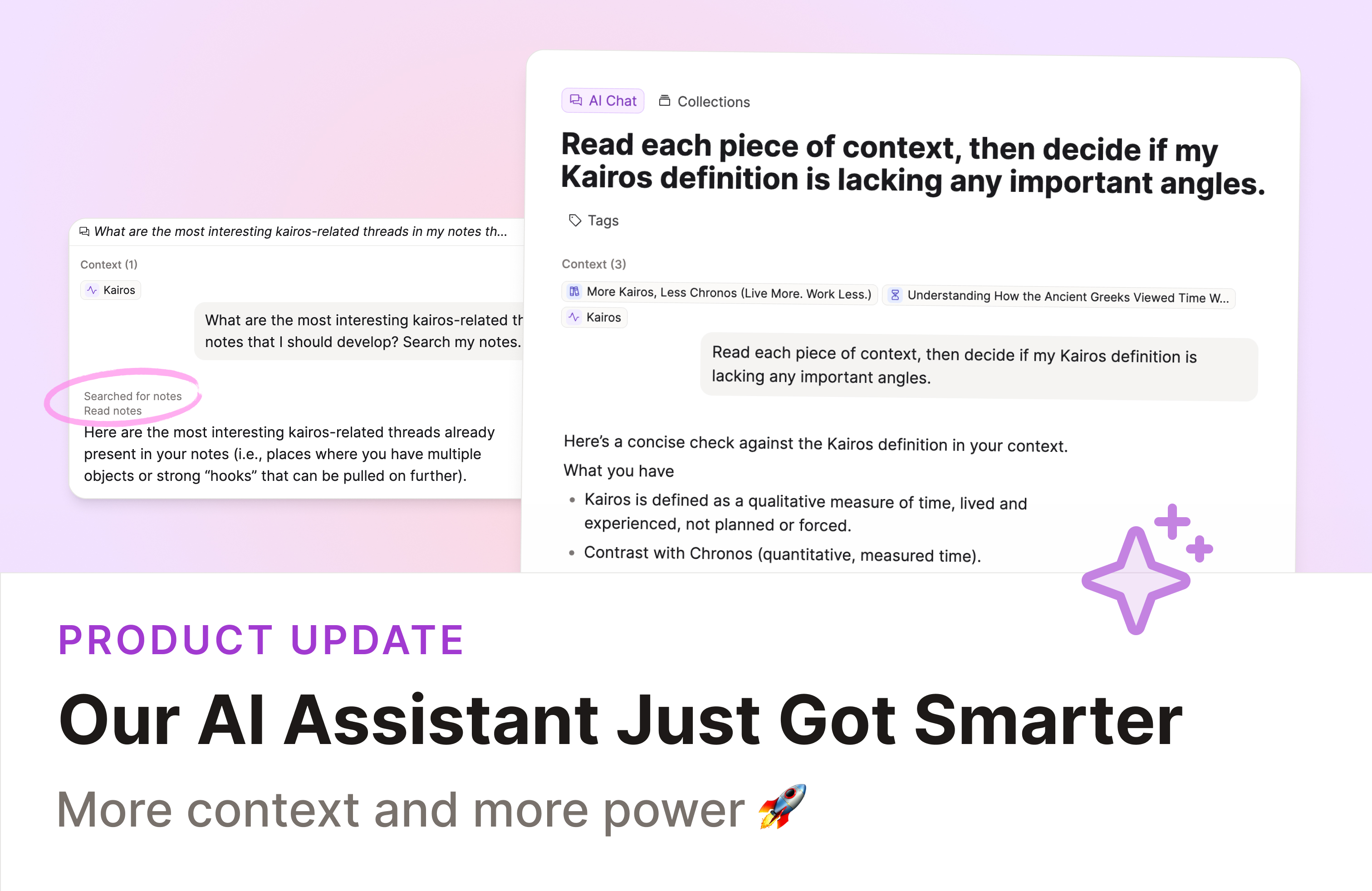

With this update, the AI assistant gets richer context, clearer sources, and better grounding in your own notes. 💫
Check out the video release notes!
A Smarter AI Assistant
Our AI assistant can now work with richer context from across your space and show you exactly which notes it used to answer your questions.
Ask it questions about projects, reading, or research and see answers grounded in your own knowledge, across multiple objects.
Richer Context for AI Conversations
We’ve significantly improved how the AI assistant understands and works with your notes.
Bring multiple notes into one conversation
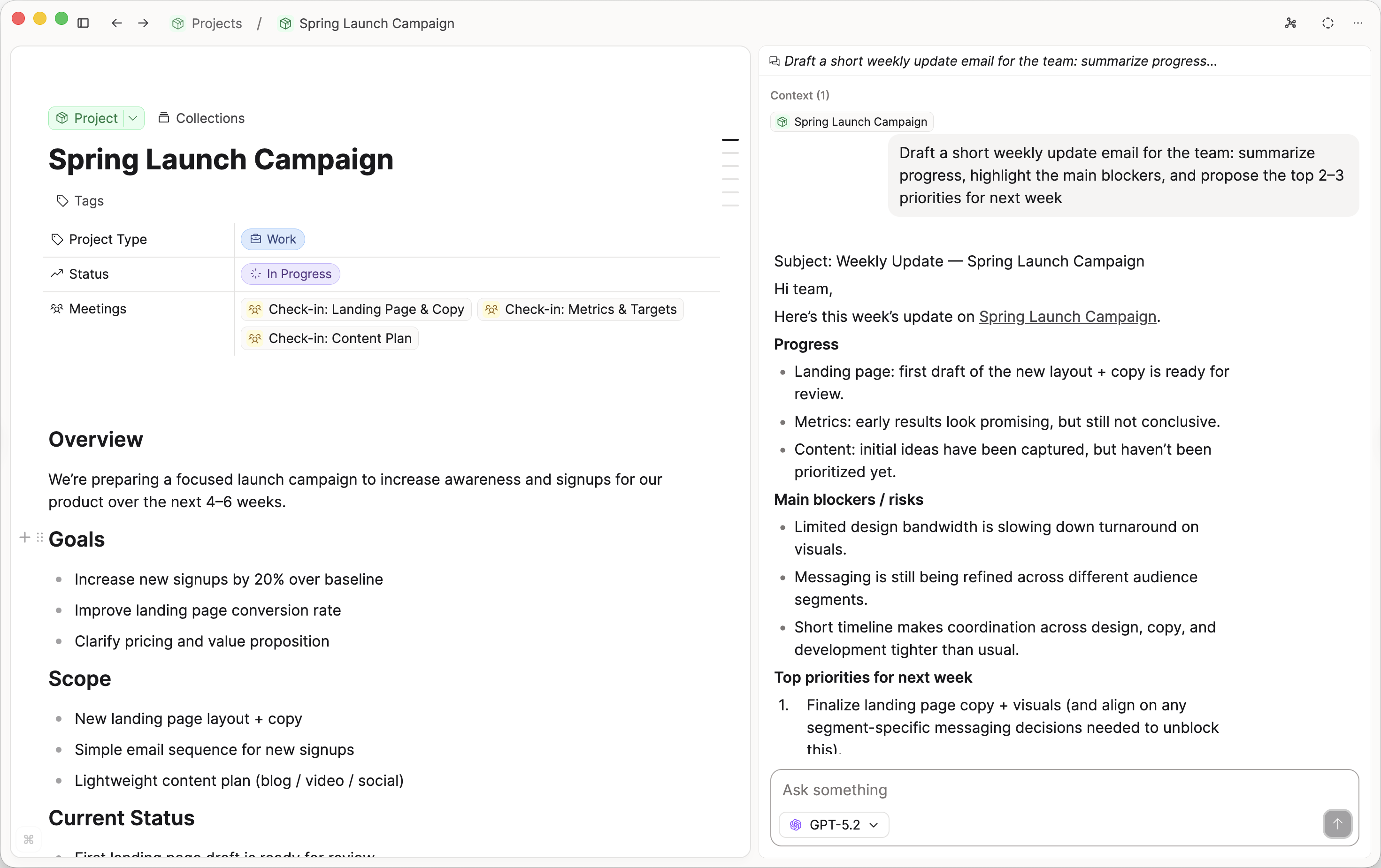
You can now select multiple objects as context for a single AI conversation. Working on a project that spans several notes, documents, and ideas? Select them all at once and ask questions that draw from everything together.
This is perfect for:
- Synthesizing insights across multiple meeting notes
- Comparing ideas from different sources
- Getting a comprehensive view of a topic you’ve explored in several places
Instead of juggling separate chats or copying content around, you simply pick what matters and start asking questions.
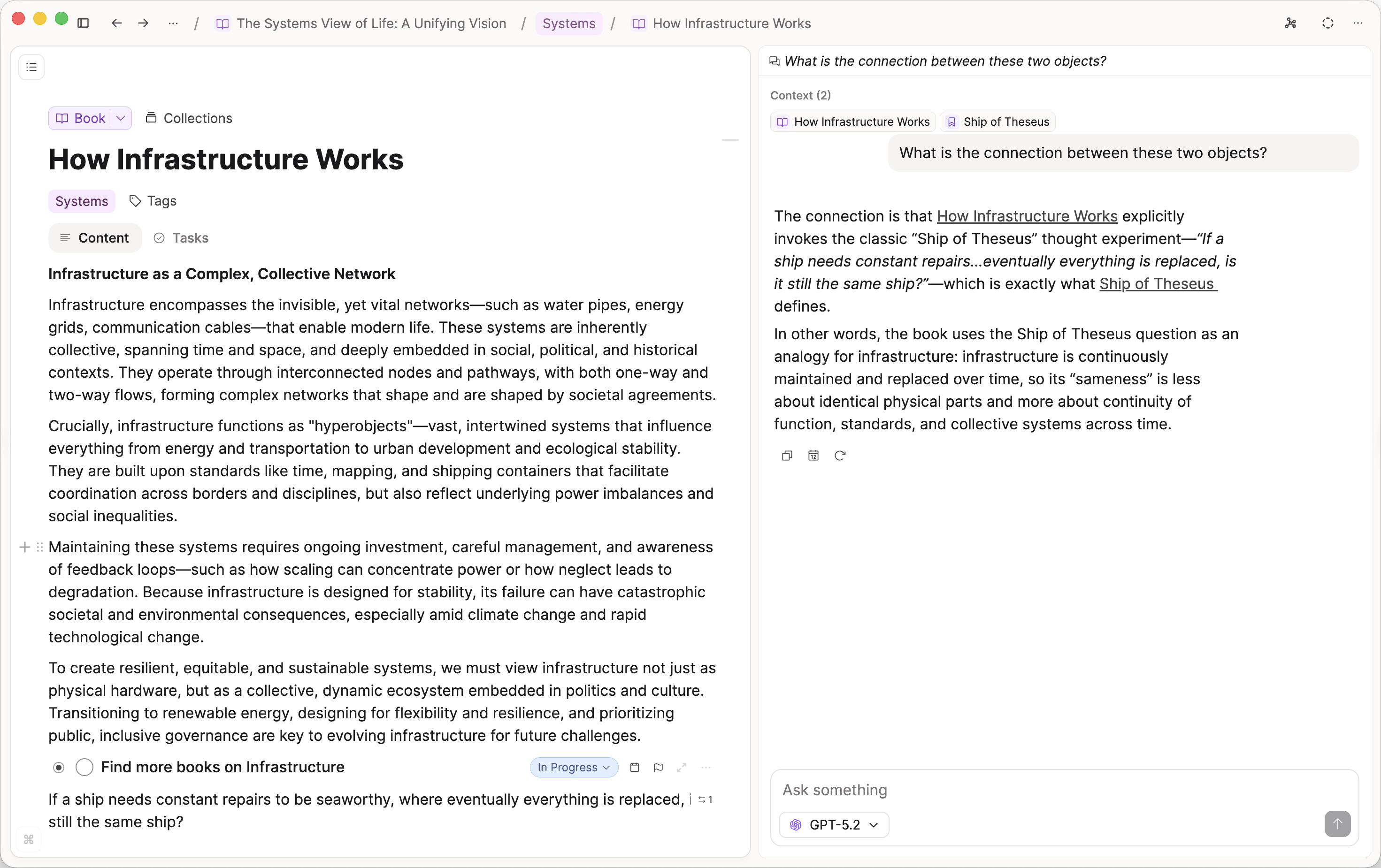
Context currently works for all object types except tags. Support for tags and collections is coming soon. 🔜
Your backlinks become part of the context
When you add objects as context, Capacities automatically adds their linked objects (backlinks) to the context too. This saves you from manually collecting all the related notes first and helps the AI see how things are connected.
Answers Grounded in Your Own Notes
The AI assistant can now read more of your content and clearly show where its answers come from.
Reads deeply into your context
On top of that, the AI can open those linked notes and read their full content. So if your project note links to meeting notes, research, or ideas, the AI can take all of that into account.
This leads to responses that better match your actual writing, decisions, and past thinking.
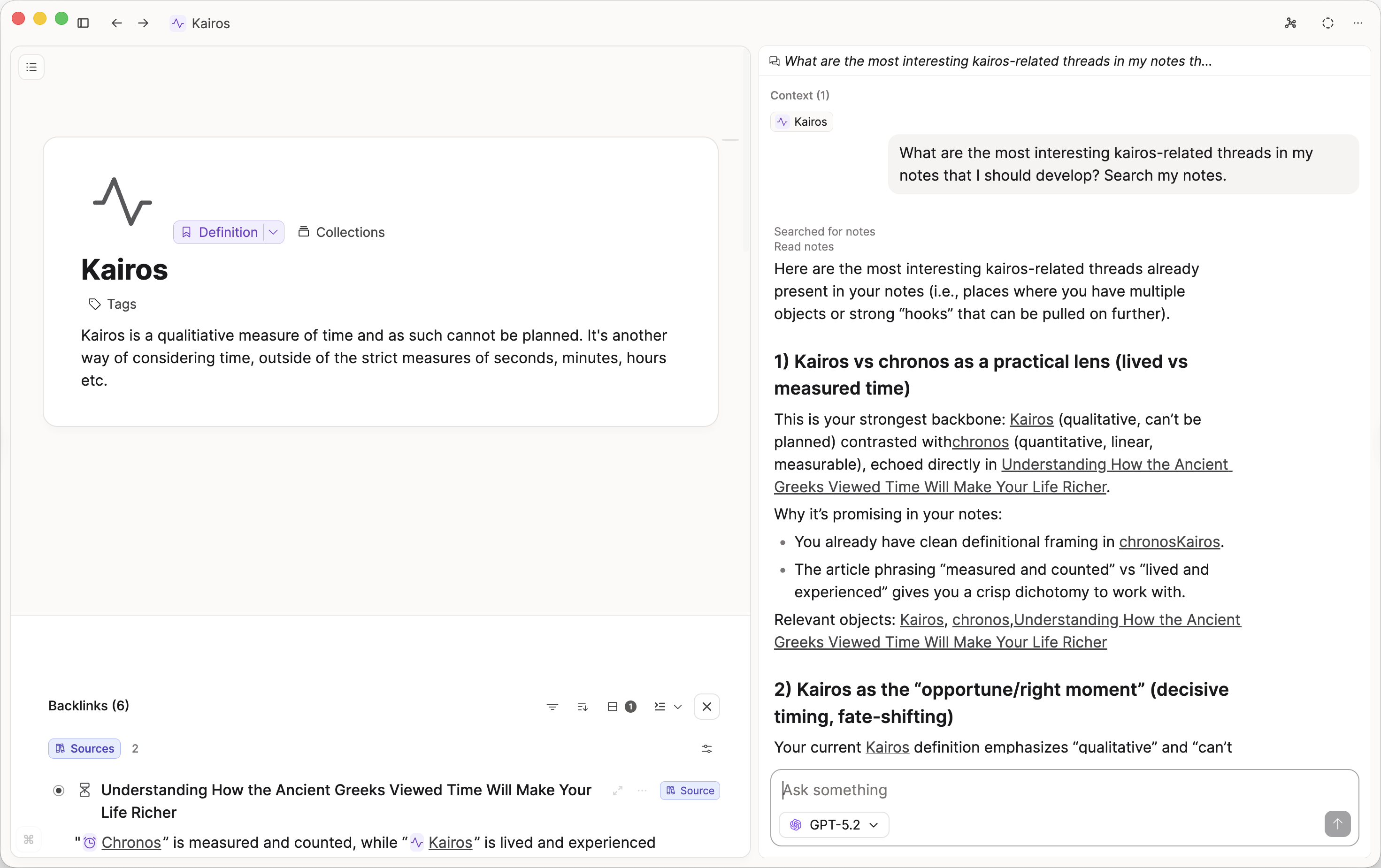
Finds relevant notes for you
To answer your questions more accurately, the AI can search across your space to pull in relevant notes you might have forgotten about.
Clear sources from your notes
When the AI responds, it now provides clickable links to the notes it referenced.
You can:
- Verify what it says against your original writing
- Discover connections between ideas you hadn’t noticed before
- Jump straight to the most relevant notes for deeper exploration
This makes the AI more transparent and trustworthy. You can always see which parts of your knowledge base were used to generate an answer.
This Is Just the Beginning
This release is the first version of our more agentic AI assistant.
- We’ll make the AI more agentic so it can better plan its behavior. This means the AI will first research your notes, potentially search the web, and then provide you with an answer.
- We’ll also add more ways for the AI to explore your content, including deeper traversal of your knowledge graph and semantic retrieval across your space.
We’ll continue to iterate, improve its behavior, and expand what it can do. Feedback from the community is very welcome and will directly shape what we build next.
Our thinking behind AI in Capacities
We’re building AI to support deep, meaningful work over the long term, not short-lived hype. That means focusing on discovery, synthesis, and thoughtful automation grounded in your own knowledge, with clear boundaries so you stay in control.
If you’re curious about how we think about AI in Capacities (beyond features and into long-term meaningful work), we’ve shared more in a new blog post: AI for meaningful work.
Perplexity Reasoning and Web Sources
If you’re using Perplexity as your AI provider, you now get access to Perplexity’s reasoning and web sources directly in your Capacities AI answers.
This combines:
- Your personal knowledge base in Capacities
- Perplexity’s ability to research and reason across the web
You get answers that can reference both your notes and external sources in a single place, helping you move from question to insight more quickly.
For example, you could ask: “Summarize my notes on this topic, and include a quick update from the web with sources.”
For setup instructions, check out our AI documentation.
Data Protection, Transparency, and Control
With these new AI capabilities, we’ve also made changes to how AI can access your data and how you stay in control.
What’s changed
- To enable features like reading backlinks and searching your notes, the AI assistant can now potentially access content across your space. This is what makes the extended context features possible: the AI needs to be able to find and read your notes to help you effectively.
- We’ve also renamed “Only use my keys” to “Prefer my keys”. Some AI features require our infrastructure to work, so we updated the name to more accurately reflect how keys are used.
If you strictly need to only use your own keys, you can no longer use the Capacities AI features.
Your data remains protected
AI features use enterprise-grade APIs with Data Processing Agreements (DPAs) that ensure:
- No training on your data
- No storage of your content on third-party services
- Processing only – your data is used solely to generate responses
You decide where AI is allowed
You can now activate or deactivate AI for each space individually.
For example, you might:
- Enable AI in your work space to help with projects, research, and writing
- Keep AI disabled in a more private or personal space
For complete details, see our AI data protection documentation.
Performance Improvements Across the Board
This release also includes a round of under-the-hood improvements across the app to make everything feel faster and more responsive, including:
- Smoother scrolling and rendering in long pages and dense views
- Quicker interactions in menus, pickers, and navigation
New Onboarding
We reworked the onboarding flow for new Capacities users. It’s now more interactive, informative, and fun!
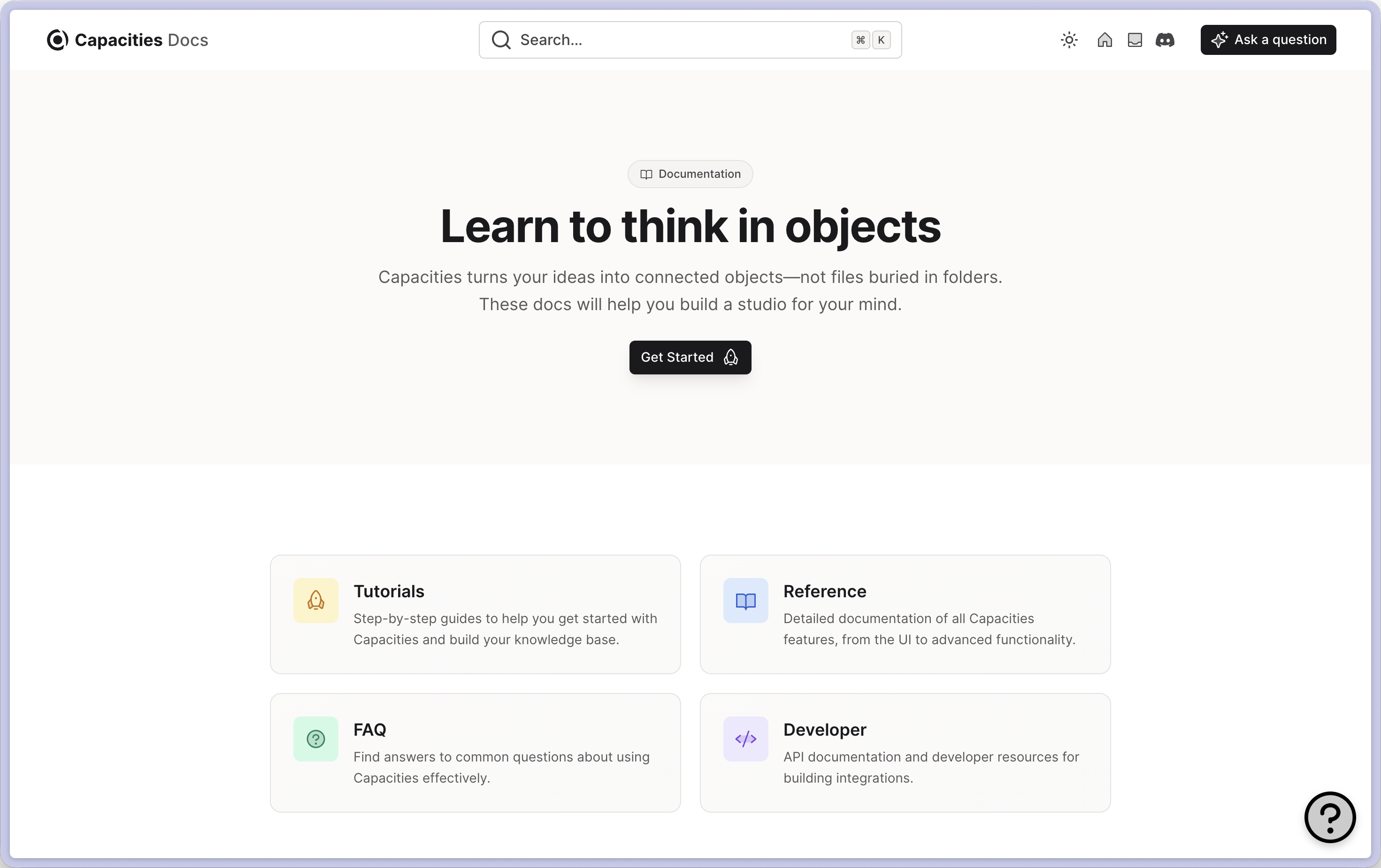
New Docs Page
Our docs have been refreshed with a more modern look and a structure that’s easier to browse, so you can find answers and setup instructions more quickly.
What’s Next?
We recently updated our What’s Next article so you know what we’re focusing on in the coming months.
It’s going to be a huge year and we’re so excited to share with you. 🚀
Improvements and Fixes
✨ Improvements
- ‘Permanently Delete’ for deleted spaces: In Account settings you can now permanently delete all content of a deleted space at any time. By default, a deleted space can be restored within 30 days; after that it is permanently deleted automatically.
- Better ranking behavior in the command palette: Object types are preferred, object type filters have better and stricter matching.
- Removed the border around suggestion items in the date picker on desktop for a cleaner look.
- Adjusted the ‘+’, ‘@’ and ‘/’ menus, so the ‘time’ option does not create a date. Ticket
- We’ve reworked the object menu to structure and group the options more logically.
- The ‘Customize Card View’ section in the object settings has received a visual overhaul.
- Better search matching with a trailing space, e.g. searching for “Object “ in the linking menu returns “Object”.
🐛 Fixes
- Nested blocks could no longer be selected using the mouse. This has now been fixed.
- A rendering issue in menus has been fixed, where incorrect icons were displayed when re-ordering items.
- Fixed numbering issues in the blocks preview to display correctly.
- Fixed: Only first embedded instance appears in backlinks. Ticket
- Fixed links with aliases so they keep the original link text as expected. Ticket
- Fixed rendering problems with drag handles in menu items to improve usability.
- Fixed grouping by backlink objects showing unnamed groups until the backlink is opened. Ticket
- Fixed icon visibility problems during sorting in menus to display icons properly.
- Removed the option to download images that were not uploaded to avoid confusion.
- Resolved a problem with object picker property menus showing inconsistent selections when choosing objects.
- Resolved a problem loading and updating budgets for external AI provider keys.
- Fixed an issue where exporting a tag would result in an empty CSV file.
- Addressed a problem on Windows where file links using
file://paths were not working correctly. - Fixed a problem that caused issues when selecting blocks inside daily notes.
- Fixed an issue where SVG images for objects were not showing correctly in Chromium-based browsers.
- Resolved a problem where Unsplash images did not appear on page previews in object gallery views and were missing in PDF exports.
- Disable and re-enable block virtualization when using ‘find in page’ to make results more accurate. Ticket
- Fixed localization issues in the offline sync settings to improve language support.
- Fixed issues when selecting multiple blocks across an object.
- Fixed accidental creation of new objects in data views so new items only create when clicking on the intended area. Ticket
- Removed the ‘Collection’ option from the link menu to prevent confusion when creating links.
- Fixed the filter by Object type in queries to work correctly again. Ticket
- Fixed missing content and queries that were pinned to the dashboard so they now appear as expected. Ticket